Skip to content

Community Notes

29 notes
Tool & source

HuiZiGe v0.4.9 is out NEW

Let multiple models suggest what to say next. This update fixes sending when you click a suggestion once in Codex.

100 Radar Points for the macOS app and source code. Already redeemed? You can download the update from the same page.


Community experience · 2026-11-15

Codex device limit at sign-in? Try clearing cache and cookies

The site owner reports that clearing browser cache and cookies, then signing in again, restored access after a paid-account device limit message.

1. In the browser used to sign in, clear the cache and cookies. 2. Return to Codex and sign in again.

This is a community experience, not a verified explanation of the limit. The exact trigger is unknown. Clearing cookies signs you out and you will need to sign in again.

Screenshot of the device paid-account limit message (Chinese)

Read the full guide ↗

Pinned · Radar Points redemption

Minimal Work Order System: Implementation and Interfaces

Build a practical workflow with chat titles, a 24-hour administrator Goal and actual desktop interfaces.

MarkdownChinese originalv1.0

One redemption unlocks this version for your account.Preview the summary and contents first.

Redeem for 100 Radar Points
Stationmaster recommendation

Mix models from multiple providers with Pi Agent + Pi-Web

If you use models from multiple providers, try Pi Agent + Pi-Web with custom plugins and combine them to suit your needs. The stationmaster will share how to use them later.

Read / share separately ↗

Practical guide · checked Oct 29, 2026

GPT Pro API Credits: Claim and Use Guide

Claim in ChatGPT, use on API Platform, verify under Credit grants, then spend on useful work. Read or share this guide ↗

1. What is the offer?

Eligible paid ChatGPT Pro and Business subscriptions include API credit grants. A full monthly period provides $100 / $200 / $500 for the corresponding Pro tiers. Business pools $20 per paid Standard seat and $100 per paid Premium seat, capped at $500 per workspace per month. Plus is not included.

The paid subscription must be at least 7 days old. The first amount is prorated to the remaining paid term; unused grants expire at the billing-cycle boundary. Annual Business billing follows its annual grant cycle. The offer must also be available to your account and country.

What if I stop renewing? Future grants stop when eligibility ends. Merely switching off renewal does not immediately remove an existing grant; use it before its recorded expiry. Unused promotional credit is not carried forward.

A plan-change example reported by the owner: the account moved from Pro 100 to Pro 200 on October 10 and received $81 on its first claim on October 29. A first grant is prorated to the remaining current billing period rather than automatically matching the new tier’s full-month allowance. The $81 amount is this account’s example, not a fixed Pro 200 grant; check the claim screen and Credit grants for the actual amount and expiry.

2. How do I claim?

  1. Open ChatGPT Settings → Billing ↗, find the monthly API benefit and choose Link organization. Business owners use their workspace billing settings.
  2. Sign in to API Platform with the same email as the eligible ChatGPT subscription. You must own the receiving API organization; for Business, you must own the workspace too.
  3. Check the receiving organization, displayed amount and expiry, then finish activation. An eligible plan alone is not proof that a grant was issued. An alternative entry is the API Platform organization’s Billing page.
Step 1: link an API organization from ChatGPT billing. This Pro 500 example is not every plan’s allowance.
Step 2: sign in to API Platform using the email of your eligible subscription.

3. Where can I use it?

Use API Platform ↗: try the playgrounds or use that organization’s project API key in your own app. Eligible API charges include text/code, agents, images, voice and tools. The benefit excludes Codex usage through API keys and adds no ChatGPT or signed-in Codex allowance. Model access and request/token limits still apply.

4. Where do I check the grant and spending?

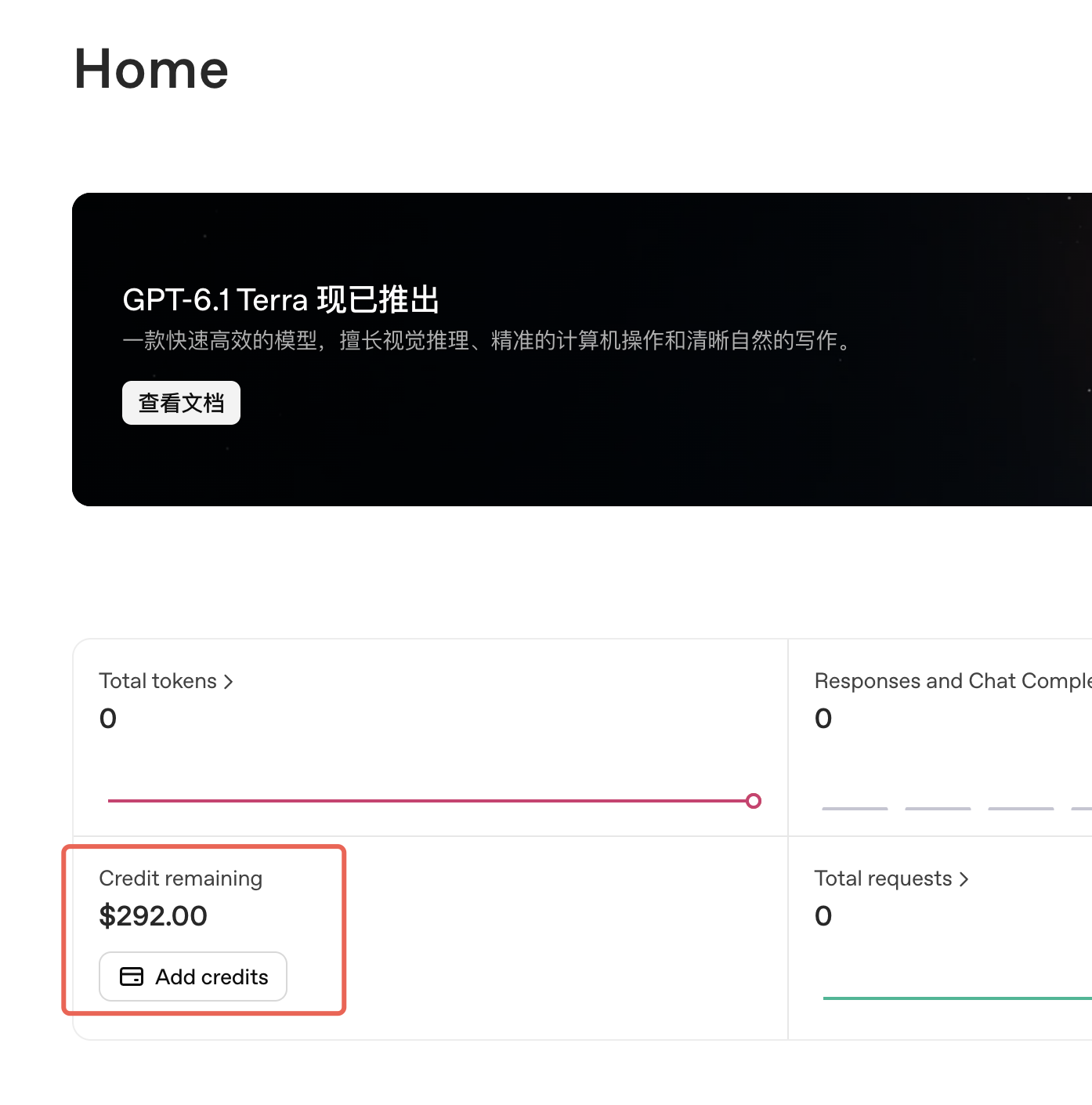
  • Home ↗: a quick view of remaining organization credit.
  • Billing overview ↗ → Credit grants ↗: verify the receiving organization, each grant’s amount and expiry. A Home balance is not necessarily this benefit alone.
  • Usage ↗: inspect requests and costs. Reported usage cost and cash charged after credits are different measures.
Example reported by the owner: Home shows $292 remaining. Check Credit grants for this grant’s amount and expiry; the Home total can include other balances.

5. What gives the best practical value?

Start with work you would otherwise pay for. The following suggestions draw on community discussion.

  • Images: illustrations, product assets and editing. Try a small batch first, then refine. Flare targets fast everyday generation; Sunburst emphasizes editing precision. Use the image guide ↗ for supported quality, size and transparency settings.
  • Transcription: meetings, interviews and subtitles. At the listed $0.0045 per minute for GPT-Transcribe, an actual $100 balance represents roughly 370 hours of transcription alone; summaries and other calls cost extra.
  • Small apps: extraction, classification, summaries and lightweight workflows. Start with a lower-cost model such as GPT-6 Luna and upgrade where quality requires it. Put budgets on longer agent jobs.

Use the current price list ↗ and your Usage records for estimates. Grants are spent before purchased credits; paid usage can continue after a grant is exhausted if another paid balance exists.

Official benefit rules ↗ · Developer guide ↗

Compiled from the owner’s community material and current official documentation. Screenshots are examples; account eligibility, grant amount and expiry may differ. This guide does not claim that an API client has stronger reasoning than a subscription.

Recommended: Agent Speed makes your Agent’s pace visible

A desktop companion for your workflow, paired with Speed Radar.

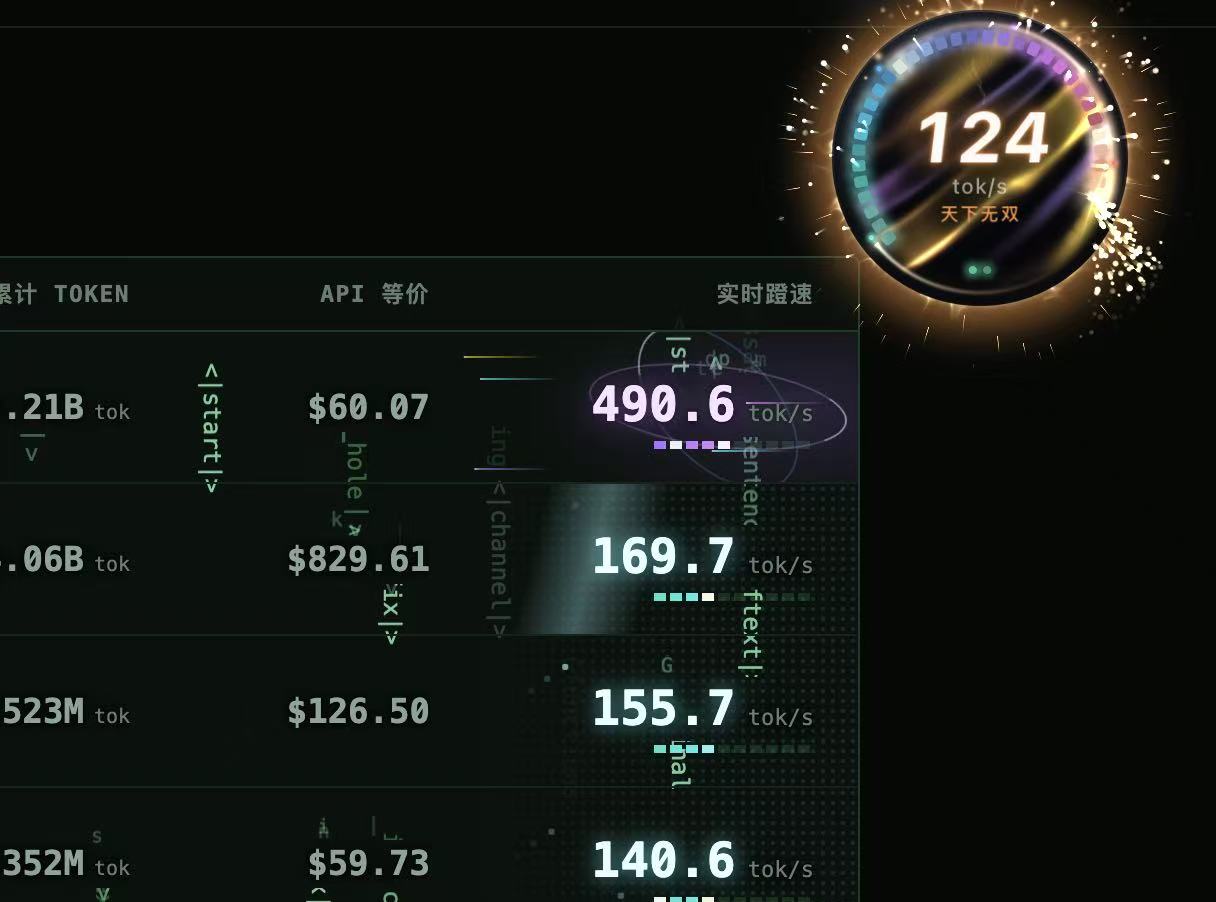
Agent Speed puts output speed, parallel activity and usage for tools such as Codex and Claude Code in a floating desktop widget, so you can see how busy your Agents are. Enable optional reporting and pair it with Speed Radar to follow speed changes and explore the live ladder. Work alongside other riders, compare your pace, and catch Tokens to challenge your own record. It looks good and makes your workflow easier to observe.

Agent Speed floating widget and Speed Radar interface example
Original screenshot supplied by the site owner. Values illustrate the interface; API-equivalent amounts are usage estimates, not actual charges.

Agent Speed open-source project ↗ · Explore Speed Radar ↗

Pinned · Stationmaster experience

ChatGPT Pro ways to address reduced model quality and rate limits

Reset the password in a fingerprint browser → enable/re-enable 2FA → sign out of all sessions → stay signed out for 24 hours

Site owner tried three US-region accounts with reduced model quality, successfully recovered all three, and completed the weekly limit.

  1. Sign out of the current session. In Bit Browser or another fingerprint browser, go to the sign-in page, select “Forgot password”, reset the password, then sign in.
  2. After signing in, open “Settings → Security” and enable or re-enable two-factor authentication (2FA).
  3. Sign out of all active sessions.
  4. Stay signed out for 24 hours, then try using the account again.
Deng Radar · 48-hour observation

Codex speed by time of day: faster from midnight to morning

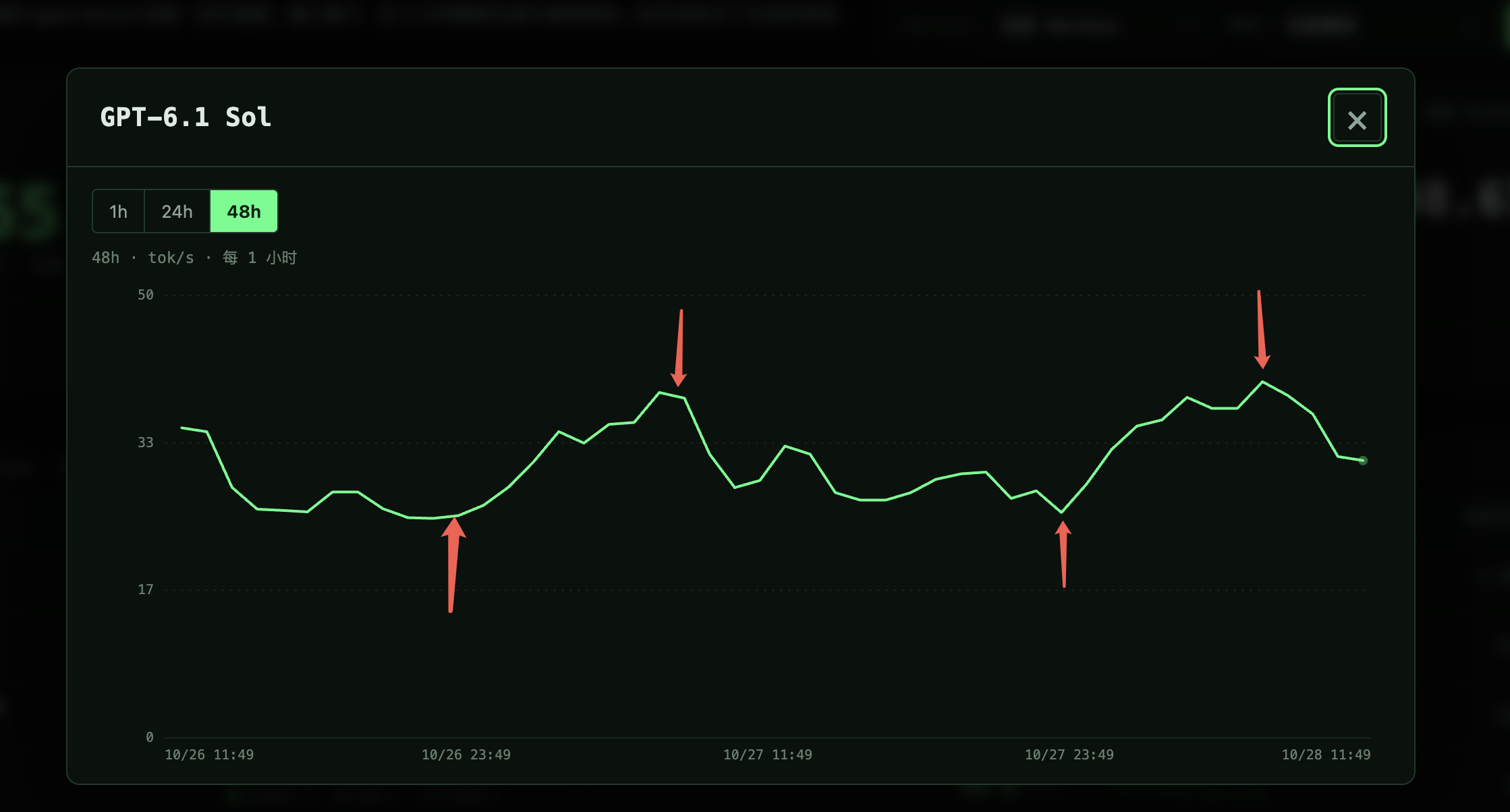
In the supplied 48-hour GPT-6.1 Sol chart from Deng Radar, speeds start rising around 00:00 Beijing time, reach a high around 07:00, then broadly ease through the day.

This community observation covers the pictured two-day window.

GPT-6.1 Sol 48-hour speed chart with two overnight rises and morning highs; Chinese labels
Stationmaster-supplied GPT-6.1 Sol chart: October 26, 11:49–October 28, 11:49, 2026, Beijing time (UTC+8); hourly tok/s view. Select the image to enlarge.

View the latest data on Deng Radar ↗

Community experience · Collected October 23, 2026

Community report: browser control in API mode

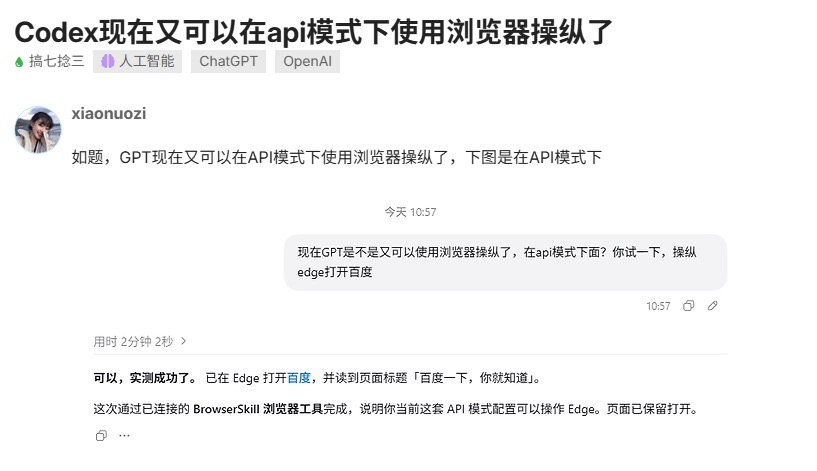
Community user xiaonuozi shared a case in which Codex, using an API-mode configuration and a connected BrowserSkill tool, opened Baidu in Edge and read the page title.

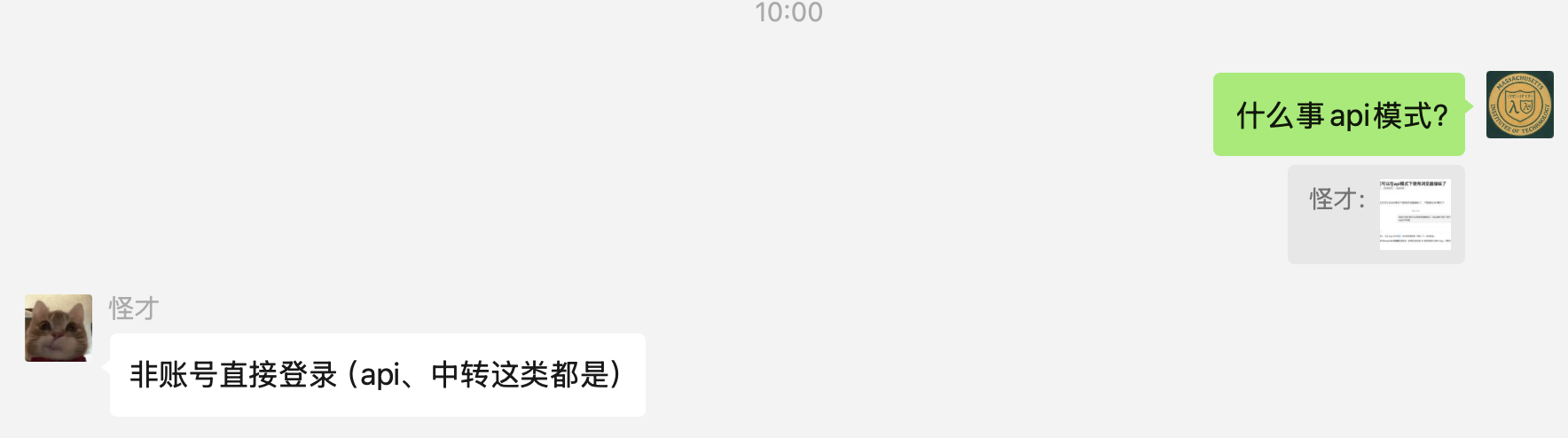
In the shared discussion, “API mode” means connecting through an API or relay rather than signing in directly with an account. This is the terminology used in that conversation.

This is a single user-reported case. The screenshots do not include the client version, full configuration or setup steps; browser control depends on the client, connected tools and provider support.

Source: community post and chat screenshots supplied by the site owner. The original post URL was not provided. Click either image to enlarge.

Community post: API-mode browser control through BrowserSkill
Chat clarification of the term “API mode”
Stationmaster experience · Usage tips

ChatGPT on the web: tips for using Pro mode

First use xhigh for quick, multi-turn clarification of the requirements. Once the goals are aligned, switch to Pro mode—and watch the magic happen.

Stationmaster reading · Permanent caching

Permanent caching: the two benefits I value most

According to the official announcement, logged-in Codex / Work users retain old-conversation caches indefinitely, with guaranteed cache hits when returning after a few hours. These are the two benefits I value most:

① Pause a long conversation, then carry on
Many of my tickets already contain extensive project background and work history. If I stop for a meal or sleep and return hours later, retained caching can reduce the extra allowance consumed by processing that same background again after cache expiry.

② Long-interval scheduled tasks need no deliberate warm-up
If I attach a scheduled task to the same conversation—for example, checking a project every six hours—it can reuse the instructions, background and earlier discussion. I can choose the schedule to suit the work instead of waking it frequently just to keep the cache warm.

My reading is that the saving concerns repeated processing of old context. New work and newly generated answers still consume allowance; the actual saving depends on how much old context each run can reuse.

Official post ↗

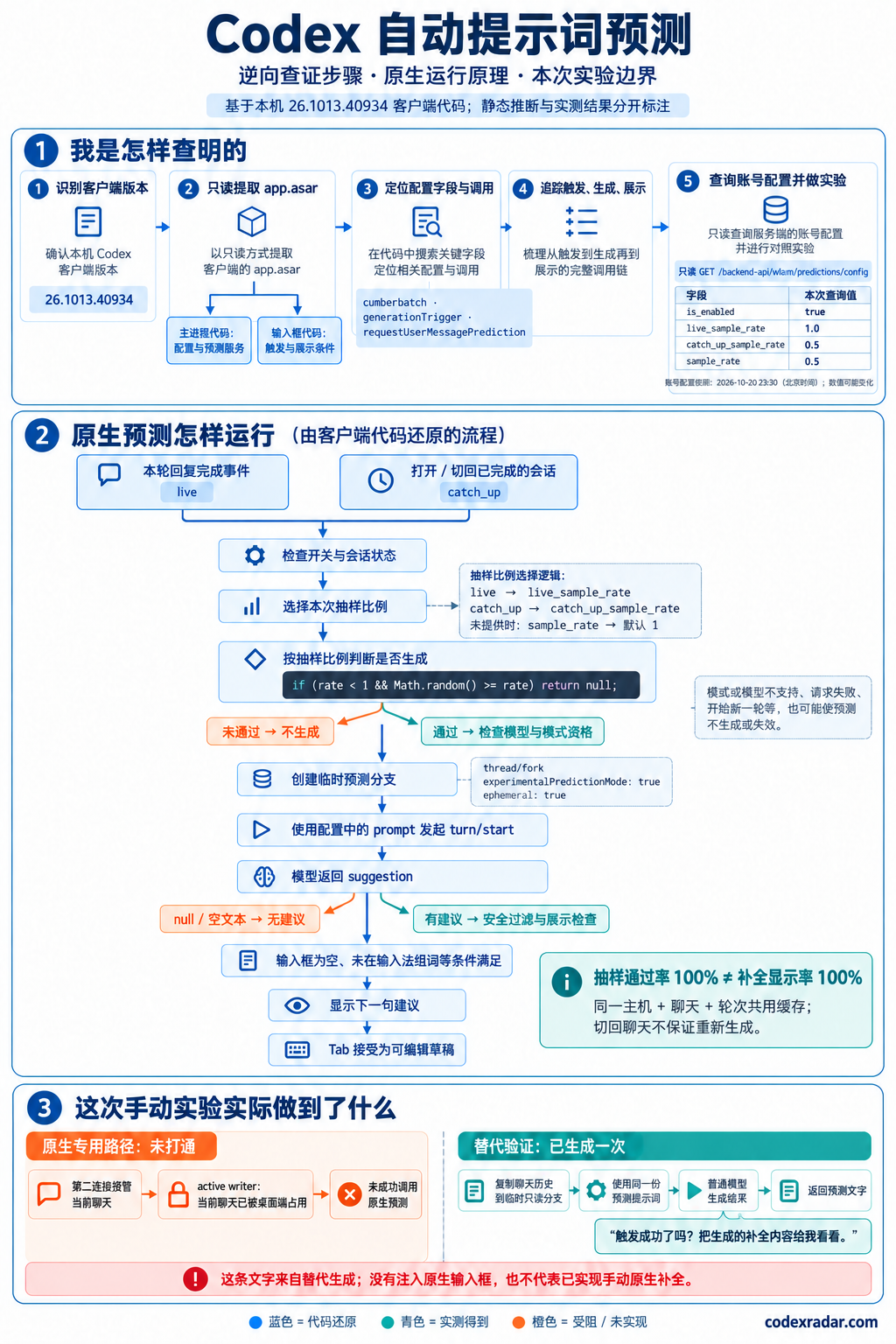
Codex prompt prediction: native flow and experiment limits

A community infographic traces the investigation, native prediction triggers, sampling, temporary branches and display conditions. It distinguishes code-based deductions from observed experiment results.

Codex prompt prediction investigation, native runtime flow and the limits of an alternative generation experiment; Chinese infographic

Click the image to view it full size.

User-provided infographic based on desktop client 26.1013.40934. Its account-configuration snapshot is dated October 20, 2026, 23:30 Beijing time. The alternative experiment generated prediction text but did not connect the native completion path or inject it into the original input box.

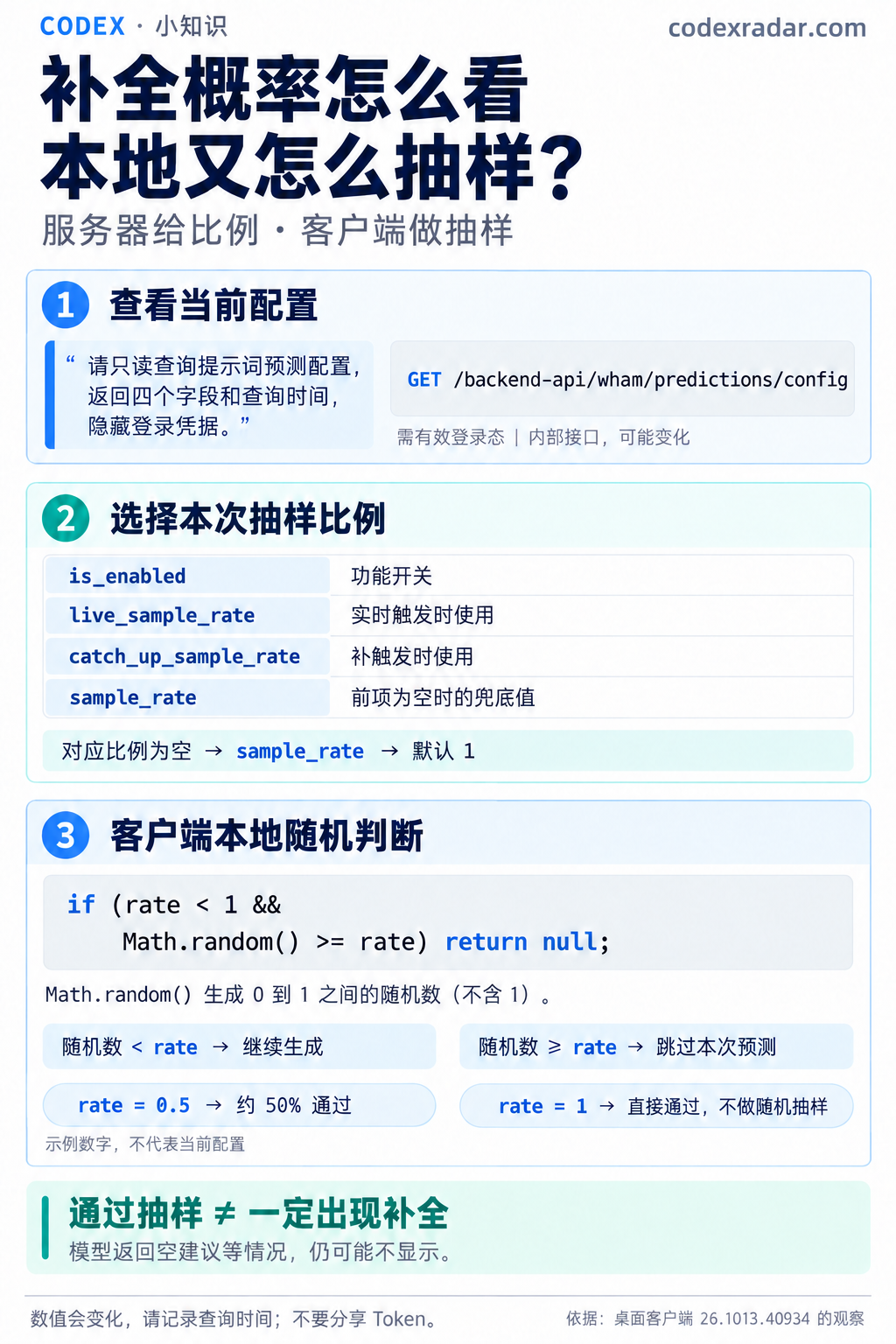
Why do prompt completions sometimes fail to appear?

This community infographic explains the feature switch, server-provided sampling rates and the client's random check. Passing the sampling check still does not guarantee a visible suggestion.

Prompt completion configuration and local sampling flow, watermarked codexradar.com

Click the image to view it full size.

User-provided infographic based on observations of desktop client 26.1013.40934. Example numbers are not the current configuration; internal interfaces and behavior may change between versions.

Usage reminder · October 19, 2026

Avoid surprise usage: Fast / Ultrafast carries into new chats

The current Codex desktop version remembers the Fast / Ultrafast speed selection on the same host and carries it into new chats. Check the speed menu when starting a chat; choose Standard when you do not need acceleration to avoid unintended extra usage.

Before starting work, check the speed mode shown in the chat. Select Standard for work that does not need Fast / Ultrafast, and check again when switching between accelerated and ordinary tasks.

Speed mode and reasoning effort are separate controls. High / Max describes reasoning effort; check the speed mode separately.

Accelerated modes consume more allowance. The current account plan and official usage rules determine the applicable rate. Official speed and usage guidance ↗

Stationmaster reminder for desktop version 26.1013.40934 (build 20770), recorded October 19, 2026. Check the displayed controls after future app updates.

Community question · Official source checked

Codex feels slow? Ask it to check with this prompt

Prefer WS when your client and gateway support it and the connection is stable. It can reduce repeated uploads and connection overhead, especially across long chats and tool round trips.

Ask Codex directly

Paste this into Codex:

Read-only check; do not change settings yet. Is this session's model traffic using WebSocket or HTTP/SSE? Give recent connection or fallback evidence linked to this session, not just a configuration setting. Check the model request transport, not the UI connection. If evidence is unavailable, say it cannot be confirmed and explain what is missing; do not guess.

Why it can affect the wait

Model calls upload the context they need. WS can send only new input when continuation conditions hold; the checked HTTP path resends the prepared current input, with SSE streaming the reply back. More material and slower uploads can add waiting. This concerns request overhead, not faster model decoding.

Implementation limits and sources

Access to current-session logs depends on the Codex environment. WS can also send full input. Images may be inline or file_id references; not every turn resends all Base64. In the checked version, activated HTTP fallback persists across that client session. A default retry budget of 5 is not a lifetime count of five drops; errors and configuration matter. Image processing and request compression affect traffic, so tokens, logical JSON size and original image size are not substitutes for actual transmitted bytes.

Checked October 17, 2026 against the official open-source Codex release rust-v0.163.0 (83086188). This describes that implementation; installed desktop versions, third-party clients, providers and gateways may differ. No account settings or network configuration were changed to prepare this note.

Speed Radar · Community reports

How Speed Radar is measured

Speed Radar directly uses the last-five-minute community output averages from the speed site, including time to first token.

Average = Σ measuredOutput ×1000 / Σ measuredMs. Sum timed output and duration before division; do not average each user’s TPS.

Only models with at least10 requests are shown, ordered by request count. Clients, contexts and modes can differ; this is not a controlled performance benchmark.

The visible panel refreshes directly from the public API every30 seconds. Hidden pages pause; failures retain the previous data and its original time.

The overview image keeps the publication snapshot with one time label. Earlier short-context tests remain archived and use a different timing definition.

Public speed source (JSON) ↗

Community experience · Video

How fast is Ultrafast? A Pro 500 recording

What does about 500 TPS feel like with Ultrafast on a Pro 500 subscription? In this recording, the model writes from 1 to 1000 in about 3–4 seconds from the first visible output. The numbers fill the screen in moments. Press play to see the pace.

Original recording · 7.36 s · GPT-6.1 Sol · High reasoning

A single self-test result shared by the site owner; the approximate speed and timing describe this demo, not a formal benchmark or official guarantee. Timing starts at the first output and excludes thinking and the wait for the first token. Tokens/s and the count of numbers are not interchangeable; results vary with the task and context.

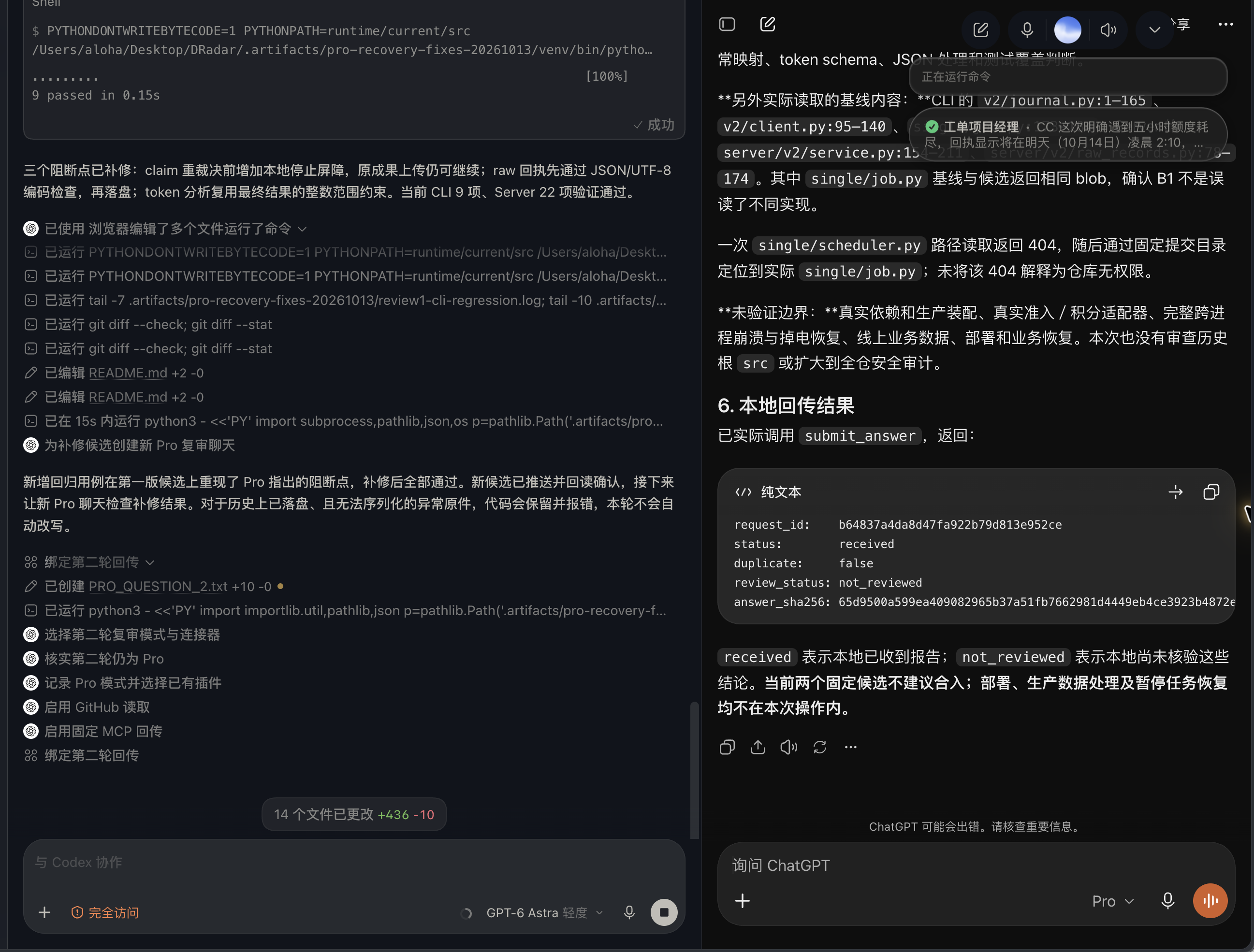
Stable collaboration between ChatGPT Pro on the web and Codex

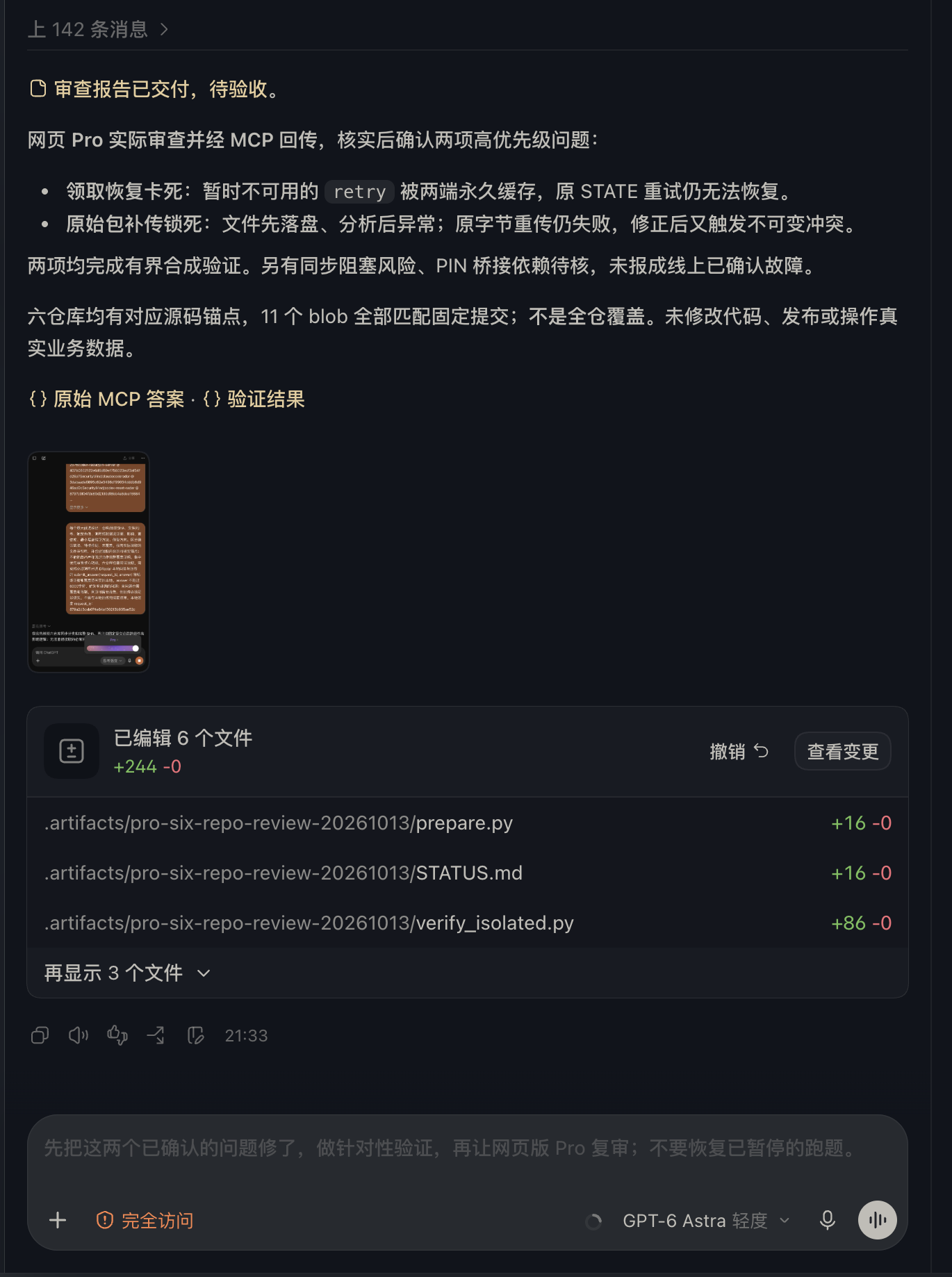
Tested by the site owner: OpenAI’s official tunnels, paired with a local MCP service, enable stable collaboration between ChatGPT Pro on the web and local Codex. Pro performs in-depth reviews and returns the results through MCP; Codex receives, verifies, and acts on them. Multi-repository code review and result return have been demonstrated on the owner’s machine, making this useful for workflows combining Pro’s deep analysis with Codex’s implementation.

Screenshots provided by the site owner: review delivery and MCP result return. Click either image to enlarge.

Site owner screenshot of Pro review delivery Site owner screenshot of Codex and web Pro with local result receipt
Community guide · Stationmaster notes

Sol / Astra: context settings

Keep the default for everyday work; compact long tasks between stages.

Keep Sol at its 500k default for everyday work; increase it to 1M only when you need more history. Subscription usage has no extra long-context surcharge, but still consumes allowance.

A 475k display is not a smaller model window: the earlier local observation showed 500k × 95% effective capacity, not a compaction threshold. Check the current chat’s actual window.

Compact Astra between task stages: with 200k-plus tokens, consider /compact after completing a stage. Compaction can lose details and does not guarantee lower usage.

Astra costs — stationmaster’s update: Astra also has no extra long-context surcharge, but its higher cached-input rate means a 500k context consumes more allowance than GPT-6.1 Sol.

Day 7 source ↗ · Sol subscription fees ↗ · Official rates ↗ · /compact ↗

Day 5 prompt completion: settings and community tips

Not seeing the Day 5 predictions? In Settings → General → Composer, enable Show predictions. You can then press Tab to accept a suggested next message, review or edit it, and send it when ready.

Community feedback: suggestions can feel a little slow, but may save typing and suggest useful next steps. Expand for a frontend example.

Check the setting: The contributor recommends Settings → General → Prompt suggestions and shared the enabled switch below. OpenAI's documentation distinguishes new-conversation suggestions from Day 5 predictions in an existing thread: the latter are controlled by General → Composer → Show predictions.

More than saving keystrokes: Community members described accurate suggestions and ideas they had not considered. One user felt the pace was a little slow, but the suggested direction was useful.

Frontend example: A member struggling with a page adjustment reported a suggestion to use ImageGen to create visual alternatives for comparison and explain the tradeoffs. They felt this was more efficient than their original approach.

Try it: State your goal and current obstacle, then review whether the suggested next step fits. Predictions may take several seconds and will not appear after every response.

Usage: During the beta, generating predictions for eligible personal Pro users does not consume Codex usage or credits. Sending a message, including an accepted prediction, follows normal usage and billing rules.

Contributor's Chinese settings screenshot showing Prompt suggestions enabled

Source: user-provided settings screenshot and Radar community discussion dated October 10, 2026. Experiences above are individual reports. Official feature and usage guide ↗

Ultrafast: accelerate the critical bottleneck

Using the Radar community group's ‘6× usage for 8× speed’ discussion as a guide, reserve Ultrafast for critical steps that cannot run in parallel and urgent production incidents. Keep routine tasks running in parallel using Standard and Fast modes instead of leaving Ultrafast on.

Source: Radar community group discussion; the ratios are discussion claims, not measurements from this card.

User-provided Pro 500 Ultrafast pelican samples show UI durations from 54 seconds to 1 minute 38 seconds; expand for the individual records.

Unblock the critical step: When several chats depend on one task's result, accelerate that task first, then resume normal parallel work. The benefit is less shared waiting, not a guaranteed 8× speedup for the whole project.

Urgent incidents: Consider it when diagnosing or fixing a production problem requires time-sensitive, sequential work.

Use it temporarily: Keep independent tasks running in parallel using Standard and Fast modes. Weigh result quality and remaining quota before enabling Ultrafast, then return to Standard or Fast once the bottleneck is cleared.

Each screenshot uses the same prompt to create an HTML/SVG 2D animation of a pelican riding a bicycle, with no tests requested.

Pro 500 Ultrafast pelican generation samples
SettingTime shown
High54 s
xhigh1 min 14 s
Max1 min 38 s
Ultra1 min (UI display)

View all four screenshots

Source: user-provided screenshots; Pro 500 and Ultrafast are the contributor's description. Durations are UI records for different generated works, not a repeated Standard/Fast comparison, and do not establish an 8× task speedup or a ranking of reasoning settings.

DOTS: Make full use of its value

A community member reported using about 3.1 billion Astra tokens through DOTS, valued at approximately US$93,600 using their own estimate, before receiving a usage-limit notice. Users who already have DOTS can make full use of its value.

Community report; the amount is a user-provided estimate, not an actual bill.

Open-source tools for model fingerprints and Codex model changes

ModelTrace offers active model attribution. is-gpt-nerfed uses Codex session records and fingerprint probes to flag model or reasoning-effort changes. These are community projects; their results are not conclusive evidence of the model in use.

ModelTrace ↗

is-gpt-nerfed ↗

Avoid frequent reasoning-effort changes in long conversations

Changing reasoning effort within a conversation may prevent reuse of the earlier cache and require input to be processed again. Longer contexts can mean higher extra input costs. Avoid frequent changes in long conversations.

Why costs can rise:Cache reuse depends on a matching context prefix. Changing reasoning effort can alter model-side instructions, causing cache misses and higher input costs when conversation history must be processed again.

Practical advice:Choose a suitable reasoning effort early. Adjust it when needed, but avoid repeatedly switching in a long conversation just to save reasoning work.

Scope:Not every change invalidates the entire cache; behavior depends on the model and client. The official API supports preserving the earlier cached prefix when changing effort on some models. This is a potential cost risk, not a universal rule for all Codex versions or personal subscription allowances.

Official prompt caching guide ↗

Self-help and getting help when answers get worse

Review sign-in sessions, then collect examples and contact official Support. Community experience; effectiveness remains unverified.

Self-help

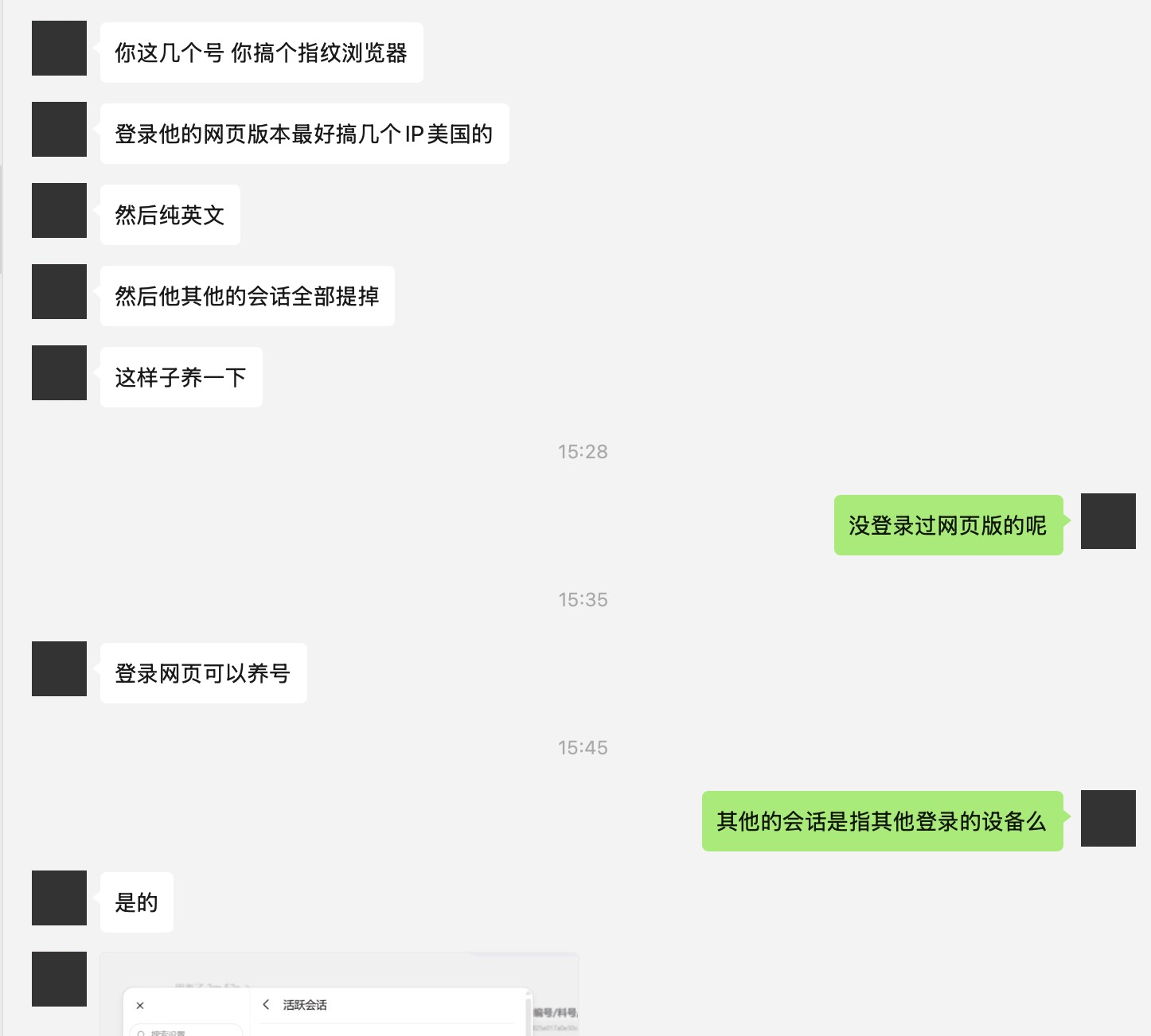
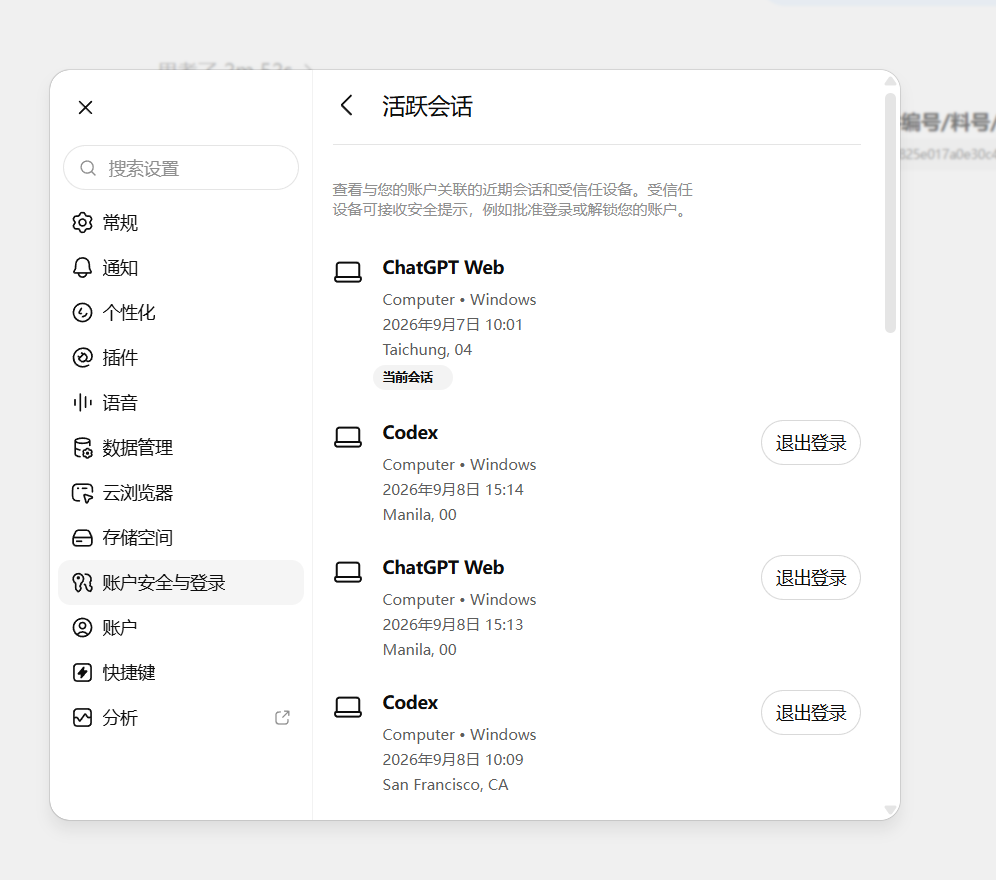
The shared discussion suggests fingerprint browsers, US IPs, English, web use and ending other sessions. To review your sessions, open ChatGPT Settings → Security → Active sessions, then check unfamiliar or unused sign-ins before ending them. This screen does not manage Codex CLI sessions.

Official session guidance ↗

Getting help

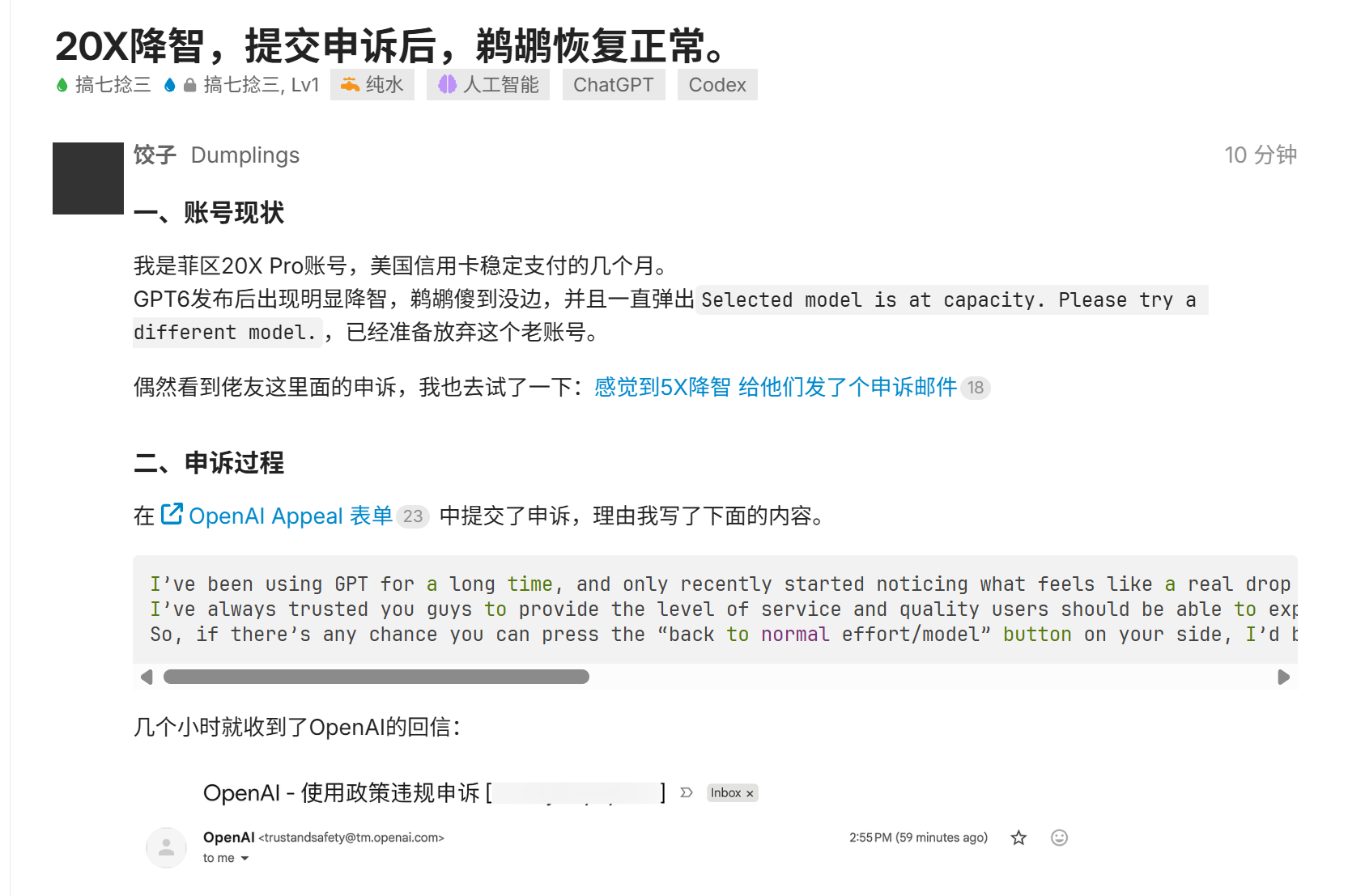
For persistent quality or capacity issues, send Support the time, model/effort, examples and redacted screenshots through the Help Center chat. For account warnings or deactivation, use the notice’s appeal link, or the official appeal form if you cannot access it. The reported recovery is one person’s experience, not evidence of causation.

Contact Support ↗ · Account appeal ↗

Community screenshots (avatars redacted)
Figure 1. Reader-provided conversation about browser use and account sessions. Click to view the original image.

Figure 1. Reader-provided conversation about browser use and account sessions. Click to view the original image.

Figure 2. The Active sessions screen shared in the conversation; it shows sign-in sessions, not chat history.

Figure 2. The Active sessions screen shared in the conversation; it shows sign-in sessions, not chat history.

Figure 3. The participant names a browser they use. This records their statement, not a tested product recommendation.

Figure 3. The participant names a browser they use.

Figure 4. Reader-provided post by Dumplings reporting recovery after an appeal. The excerpt shows the complaint and an email header, not the full reply or a controlled comparison.

Figure 4. Reader-provided post by Dumplings reporting recovery after an appeal. The excerpt shows the complaint and an email header, not the full reply or a controlled comparison.

English reference wording

Adapt to your experience; the ‘button’ is a request, not a verified control.

I’ve been using GPT for a long time, and only recently started noticing what feels like a real drop in quality or intelligence.

I’ve always trusted you guys to provide the level of service and quality users should be able to expect. I also genuinely believe that better collaboration between people and AI can help us do better work and, in some small way, make the world a better place.

So, if there’s any chance you can press the “back to normal effort/model” button on your side, I’d be incredibly grateful.

Long context · Included usage UPDATED

GPT-6 Astra long context: a community-shared Support reply

Support could not confirm that the Enterprise exception above 272K input tokens applies to personal Plus / Pro five-hour and weekly allowances. Longer context may still consume more included usage.

Community follow-up: A community member asked OpenAI Support about GPT-6 Astra in Codex under a personal ChatGPT Plus or Pro subscription. They shared the reply below, dated September 7 in the screenshot. This email record was shared by a community member.

What needed correcting: The earlier card generalized an Enterprise rate-card statement. That USD token-based rate card applies only to new Enterprise customers whose agreement specifies usage-based billing. Its GPT-6 Astra long-context exception and cache-write statement should be read within that scope.

What the reply says: Support cannot confirm that the Enterprise exception applies to personal five-hour or weekly allowances. Personal usage is not documented as the same token-based rate card; the reply does not confirm a separate multiplier starting above 272K.

What this means: An unconfirmed multiplier establishes neither an extra multiplier nor an exemption. The reply says usage can vary with model, reasoning, task complexity, context length, Fast mode, image generation, and parallel activity. Larger context can consume more allowance.

Community-shared OpenAI Support reply distinguishing personal Plus and Pro Codex allowances from Enterprise token-based pricing

Community-provided Support email screenshot. Click to read the original image; the image's timezone is not specified.

Current public guidance: Personal-plan documentation lists context and other task factors as usage drivers. Check the allowance shown for your account rather than calculating personal usage from the Enterprise rate card.

Using Codex with your ChatGPT plan ↗Codex usage limits by plan ↗

The earlier source, with its scope:Enterprise token-based rate card ↗

Earlier excerpt of the Enterprise token-based rate card: GPT-6 Astra's Codex long-context exception

Enterprise token-based rate card excerpt.

Capacity and compaction are separate: The earlier 872,000 × 90% = 784,800 calculation only describes a compaction point under those assumed settings. It is not an allowance formula or a guarantee of current client defaults; check the context and compaction settings your client actually uses.

Corrected September 8, 2026 using the community-provided reply and linked public documentation.

Task collaboration

How can two Codex tasks find each other?

Copy a task's deep link and give it to the other task. The link acts like a precise task address, so each side can identify the intended session before review, handoff, or coordinated work begins.

How: Open the target task's menu, choose Copy → Copy deep link, then paste the link into the other Codex task and state what each side should do.

Why it matters: The receiving task gets an exact, referable target instead of an ambiguous phrase such as “the other window.” This is useful for mutual review, progress handoff, and having one task consolidate another task's findings.

Boundary: A deep link establishes identity and navigation; it does not automatically synchronize permissions, working directories, or conversation context. Keep responsibilities explicit, and isolate simultaneous code changes with separate worktrees or an equivalent workflow.

Copy the Codex task deep link from the task menu

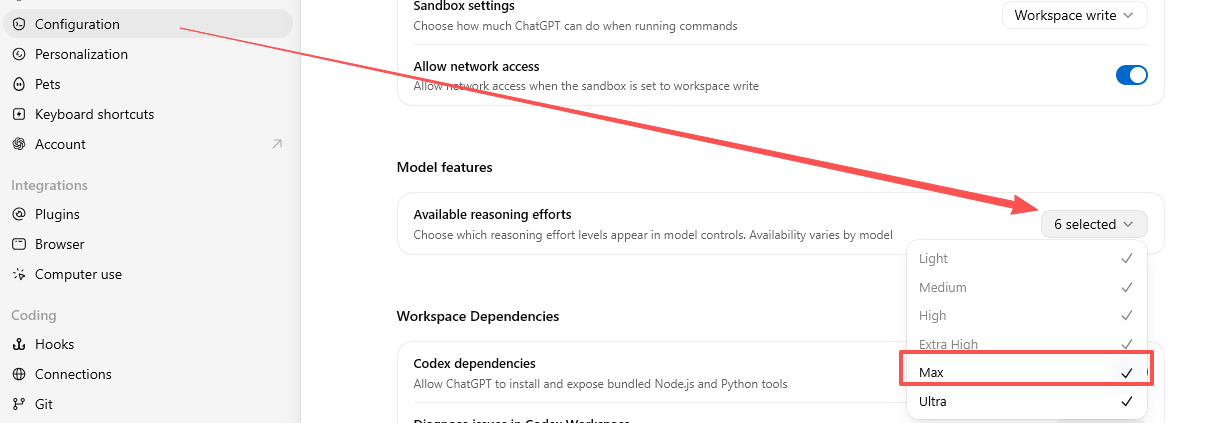
How to enable Max reasoning effort

Open Codex Settings → Configuration → Model features → Available reasoning efforts, then select Max. It will appear in model controls for supported models.

Enable Max in Available reasoning efforts under Codex Configuration
Credit conversion

250 Codex credits are equivalent to $10 of quota

For a quick Codex quota conversion, 250 credits correspond to 10 US dollars of usage quota.

01 / 29